Crazyrouter API Document
🇺🇸 English
  • 中文
  • 🇺🇸 English
🇺🇸 English
  • 中文
  • 🇺🇸 English
🇺🇸 English
  • 中文
  • 🇺🇸 English
API 参考
快速开始接入教程官网模型与价格控制台
API 参考
快速开始接入教程官网模型与价格控制台
  1. Plugins & Client Setup Guides
  • 默认模块
    • Crazyrouter Overview
      • Introduction
      • API request
      • API Quick Start Guide
      • API Endpoint
      • Contact us
    • Chat
      • ChatGPT
        • ChatGPT Audio
          • whisper-1
          • Create Translation (whisper-1, audio to English, untested)
        • ChatGPT Chat
          • Chat Completion Object
          • Chat Completion Chunk Object
          • Create Chat Completion (Streaming)
          • Create Chat Completion (Non-Streaming)
          • Create Chat Vision (Streaming)
          • Create Chat Vision (Streaming) base64
          • Create Chat Vision (Non-Streaming)
          • Create Chat Image Generation (Non-Streaming)
          • Function calling
          • Official N Test
          • Create Chat Function Call
          • Create Structured Output
          • Control Reasoning Model Effort Level
          • Create Chat Completion qwen-mt-turbo
          • Create Chat Completion DeepSeek V3.1 Thinking Level (Streaming)
          • DeepSeek OCR Recognition
        • ChatGPT Completions
          • Completion Object
        • ChatGPT Embeddings
          • Embedding Object
          • Create Embedding
        • Web Search
          • web search
        • ChatGPT Moderations
          • Content Moderation (Moderations)
      • Anthropic Claude
        • Chat Completion Object
        • Chat Completion Chunk Object
        • Count Input Tokens count_tokens [Native Format]
        • Create Chat Completion (Streaming) [Native Format]
        • Create Function Call (Streaming) [Native Format]
        • Create Thinking Chat [Native Format]
        • Create Thinking Chat
        • Create Chat Completion (Streaming)
        • Create Chat Completion (Non-Streaming)
        • Create Chat Vision (Streaming)
        • Create Chat Vision (Non-Streaming)
        • PDF Support [Native Format]
      • Google Gemini
        • Gemini Native Format
          • Create Context Cache cachedContents [Native Format]
          • Text Generation
          • Text Generation Streaming
          • Text Generation Thingking+streaming
          • Image Generation gemini-2.5-flash-image
          • Image Generation gemini-2.5-flash-image Control Aspect Ratio +imageSize
          • Image Understanding
          • Formatted Output
          • Function Call
          • Document Understanding
          • URL context
          • Code Execution
          • Video Understanding
          • URL context
          • Video Understanding-url Native Format
          • Audio Understanding
          • Text Generation gemini-3-pro-preview:generateContent
        • Chat-compatible Format
          • Gemini Image Generation API [Chat Compatible Format]
          • Chat API [Chat Compatible Format]
          • Chat API - Thinking 1 [Chat Compatible Format]
          • Chat API - Thinking 2 [Chat Compatible Format]
          • Vision API [Chat Compatible Format]
          • Chat + File Reading API [Chat Compatible Format]
    • Chat (Responses)
      • Responses API vs Chat API
      • Create Function Calling
      • Create Model Response (Streaming)
      • Create Model Response (Control Thinking Length)
      • web search
      • Create Model Response (GPT-5 Enable Thinking)
    • Image Generation Models
      • Image Object
      • Midjourney
        • Submit Video Task (Image-to-Video)
        • Submit Simple Change Task (String Form)
        • Get Task Image (Gateway-Hosted Copy)
        • Submit Edits Task (Inpainting)
        • Submit Shorten Task (Prompt Shortening)
        • Submit Change Task (U/V/R Actions)
        • InsightFace Face Swap
        • upload image
        • upload Imagine task
        • Query Task Status by Task ID
        • Query Tasks by ID List
        • Get Task Image Seed
        • Execute Action
        • Submit Blend Task
        • Sumit Describe task
        • Sumit Modal
      • GPT Image (gpt-image-2)
        • Create gpt-image-1
        • Create Image (gpt-image-2, OpenAI images/generations format)
        • Edit Image (gpt-image-2, mask / multi-image reference)
      • Jimeng Image
        • Create Image
        • Edit Image
      • Doubao Seedream
        • doubao-seedream-3-0-t2i-250415
        • doubao-seededit-3-0-i2i-250628
        • doubao-seedream-4-0-250828 Text-to-Image
        • doubao-seedream-4-0-250828 Image-to-Image
        • doubao-seedream-4-0-250828 Multi-Image to Image
        • doubao-seedream-4-5-251128 Text-to-Image (text-only input, single image output)
        • doubao-seedream-4-5-251128 Text+Image to Image (single image in, single image out)
        • doubao-seedream-4-5-251128 Multi-Image Fusion (multiple inputs, single output)
        • doubao-seedream-4-5-251128 Image Set Output (multi-image output)
        • doubao-seedream-4-5-251128 Single Image to Image Set
        • doubao-seedream-4-5-251128 Multi-Reference to Image Set
      • Qwen-Image
        • qwen-image-edit-2509
    • Video Models
      • Veo
        • Unified Video Format
          • Unified Video API Task Status
          • Create Video with Image
          • Create Video (Reference Image)
        • OpenAI Video Format
      • Kling
        • Callback Protocol
        • Omni Video omni-video (kling-v3-omni / kling-video-o1)
        • Image Generation
        • Text-to-Video
        • Image to Video
        • Query Task (free)
        • Multi-Image Reference to Video
        • Lip Sync
        • Extend Video
        • Video Effects
      • Jimeng Video
        • Jimeng Task Status
        • Submit Video Generation Task
        • Query Video Task (free)
      • Hailuo (MiniMax)
        • Hailuo Task Status
        • Submit Video Generation Task
        • Query Video Task Status
        • Image-to-Video
      • Doubao Seedance
        • Text-to-Video Example
        • Image to Video - First Frame
        • seedance-lite First/Last Frame
        • Image-to-Video (base64 encoded)
        • Query Single Task
      • Sora
        • OpenAI Video Format
          • OpenAI Query Task
          • OpenAI Download Video
          • OpenAI Create Video (with image)
          • Create Video from Storyboard
          • OpenAI Create Video with Image (Private Mode)
          • OpenAI Create Video (with Character)
      • Tongyi Wanxiang
        • Generate Video
        • Query Video
      • Unified Video API (all video models)
        • Query Video Task (Unified Format)
        • Submit Video Generation Task (Unified Format)
    • System API
      • List Tokens
      • Create Token
      • Get Models Supported by Token
      • Get Account Info
      • Update Token
      • Delete Token
      • Search Tokens
      • Query Async Task (Image / Video)
      • Get Single Model Info
    • Suno Music
      • Suno Parameters
      • Suno Overview
      • Submit Tasks
        • Generate Song (Inspiration Mode)
        • Generate Song (Custom Mode)
        • Generate Song (Extend Mode)
        • Generate Song (Artist Style)
        • Generate Song (Upload Song for Re-creation)
        • Generate Lyrics
        • Concatenate Songs
      • Query Tasks
        • Batch Get Tasks
        • Query Single Task
        • Get WAV
    • Python
      • Python Speech-to-Text (whisper-1)
      • Python Embeddings
      • Python Function Calling Demo
      • Python LangChain Demo
      • Python llama_index Configuration
      • Python Basic Chat
      • Python Local Image Recognition (Multimodal)
      • Python Remote Image Recognition (Multimodal)
      • Python Image Recognition with Claude
      • Python Library Streaming Output
      • Python requests streaming output demo
      • Python image generation and editing (gpt-image-2)
      • Python official OpenAI library (AutoGPT / LangChain, etc.)
      • Python multi-turn conversation
    • Rerank
      • Rerank
    • PHP
      • PHP Image Editing Demo
    • Node.js
      • Node.js Audio Transcription Demo
    • Plugins & Client Setup Guides
      • Codex
      • N8N
      • Gemini CLI
      • Claude Code Installation and Usage Guide
      • CherryStudio Configuration Guide
      • dify Configuration Guide
      • cline
      • aider
      • Cursor
      • lobechat
      • ChatBox
      • gpt_academic
      • nextchat
      • zotero gpt
      • CLAUDE DEV
      • ChatGPT Sidebar
      • chatgpt-on-wechat
      • chatgpt GPT Academic
      • RikkaHub
      • Coze Workflow Configuration Guide
    • Help Center
      • Thinking Model Response Format
      • HTTP Status Codes and Their Meanings
      • Image Upload API
    • Decisions API (TypeSafe JEV)
      • Create Decisions
    • 3D Generation (Hunyuan hy-3d)
      • Query 3D Generation Task
      • Submit 3D Generation Task
    • File Upload
      • Temporary Images
        • Temporary Base64 Image Upload
        • Get Presigned Direct Upload URL (recommended for large files)
        • Re-host Remote Image as Temporary URL
        • Temporary Local Image Upload
      • Playground
        • Playground Image Upload
      • Deprecated
        • Legacy Upload Endpoint (Unsupported)
  • Unified Video API
    • Unified Video
  1. Plugins & Client Setup Guides

Codex

Codex Installation and Configuration Guide#


Windows Tutorial#

System Requirements#

Windows 10 or Windows 11
Node.js 22+
npm 10+
Network connection

Installation Steps#

Prerequisites!!!
Install Git Bash by visiting Git - Downloads to download the version for your system, then click "Next" through the installation process.
1. Install Node.js
Visit the Node.js Official Website to download and install the latest LTS version.
2. Install codex
Open Command Prompt (CMD) or PowerShell, and run:
3. Verify Installation
Open Command Prompt (CMD) or PowerShell, and run:

Configure API#

1. Obtain Auth Token
Visit the Crazyrouter website and perform the following:
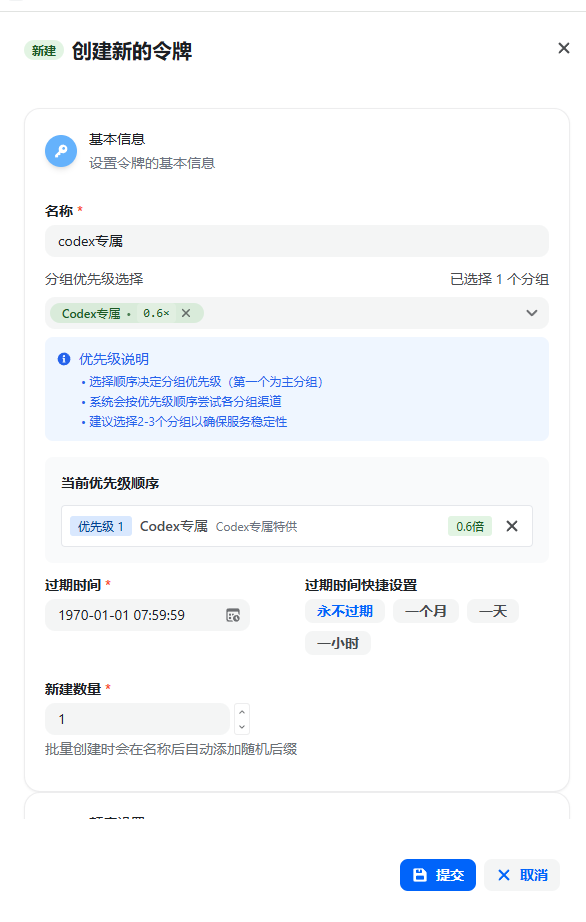
Click Console → API Tokens page
Click Add Token
Token group
Token name: Any name you prefer
Quota recommendation: Set to Unlimited
Keep other options as default
image.png
2. Configuration Files
Important: Replace sk-xxx below with your actual API key generated from Crazyrouter!
1.
Navigate to the .codex folder in your user directory, e.g., C:\Users\testuser\.codex.
(Note: If you cannot see this directory, you haven't enabled "Show hidden items" in Windows. Please enable it in File Explorer first.)
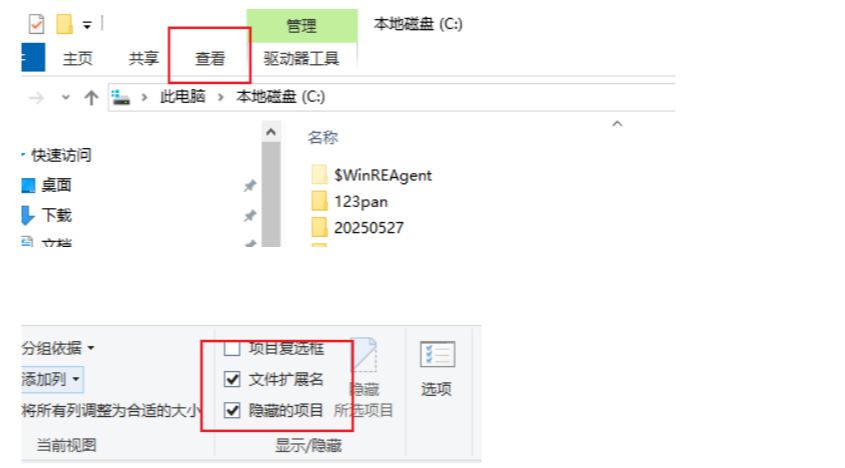
image.png
2.
If the .codex folder doesn't exist, manually create it, then create two files inside: config.toml and auth.json.
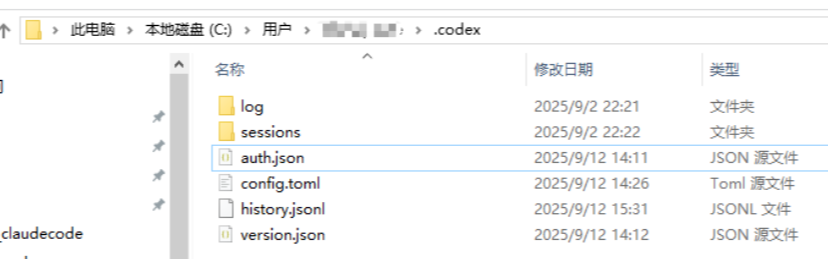
image.png
3. Fill in the configuration (replace sk-xxx with your actual SK).
a. Configuration in auth.json:
{"OPENAI_API_KEY": "sk-xxx"}
b. Configuration in config.toml (just paste the content below):
model_reasoning_effort options are high, medium, low, representing the model's thinking effort level.
model_provider = "api111"
model = "gpt-5-codex"
model_reasoning_effort = "high"
disable_response_storage = true
preferred_auth_method = "apikey"

[model_providers.api111]
name = "api111"
base_url = "https://api.crazyrouter.com/v1"
wire_api = "responses"

Launch codex#

Restart your terminal! Restart your terminal! Restart your terminal!
Then navigate to your project directory:
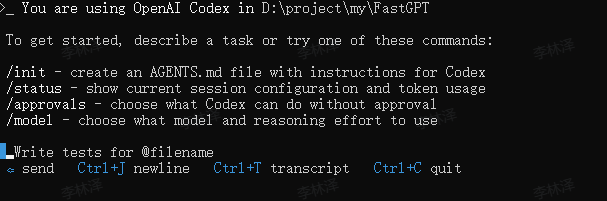
Run the following command to start:
image.png

VSCode codex Extension#

After completing the above configuration, search for and install codex in the VSCode Extension Marketplace.
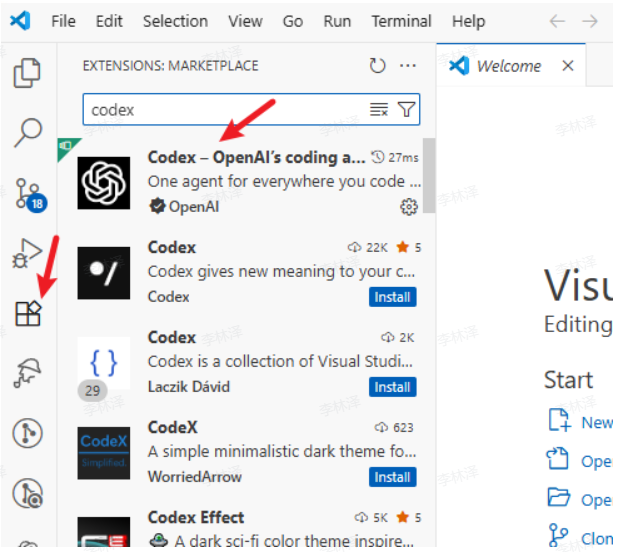
image.png
Once installed, it will appear in the sidebar.
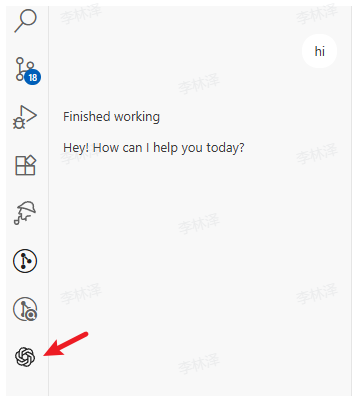
image.png#

Mac Tutorial#

System Requirements#

macOS 12 or higher
Node.js 22+
npm 10+
Network connection

Installation Steps#

1. Install Node.js
Option 1: Visit the Node.js Official Website to download and install the latest LTS version.
Option 2: Use Homebrew (Recommended)
2. Install codex
Open Terminal and run (may require sudo):
3. Verify Installation
Open Terminal and run:

Configure API#

1. Obtain Auth Token
Visit the Crazyrouter website and perform the following:
Click Console → API Tokens page
Click Add Token
Token group: Select codex-special (you must select this group, otherwise it won't work)
Token name: Any name you prefer
Quota recommendation: Set to Unlimited
Keep other options as default
image.png
2. Configuration Files
Important: Replace sk-xxx below with your actual API key generated from Crazyrouter!
1.
Create directory and files:
2.
Edit the auth.json file:
Press i to enter insert mode, paste the following content (replace sk-xxx with your key), then press ESC, type :wq and press Enter to save and exit.
{"OPENAI_API_KEY": "sk-xxx"}
3.
Edit the config.toml file:
Press i to enter insert mode, paste the following content, then press ESC, type :wq and press Enter to save and exit.
model_provider = "api111"
model = "gpt-5-codex"
model_reasoning_effort = "high"
disable_response_storage = true
preferred_auth_method = "apikey"

[model_providers.api111]
name = "api111"
base_url = "https://api.crazyrouter.com/v1"
wire_api = "responses"

Launch codex#

Restart your terminal! Restart your terminal! Restart your terminal!
Then navigate to your project directory:
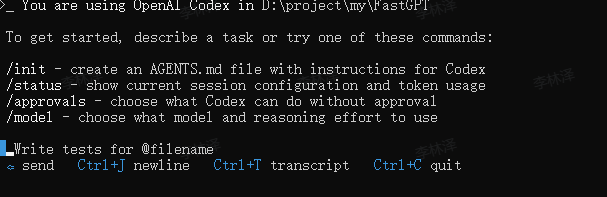
Run the following command to start:
[Image]

VSCode codex Extension#

After completing the above configuration, search for and install codex in the VSCode Extension Marketplace.
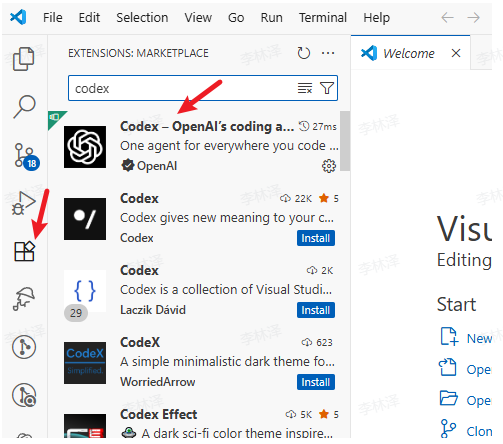
[Image]
Once installed, it will appear in the sidebar.
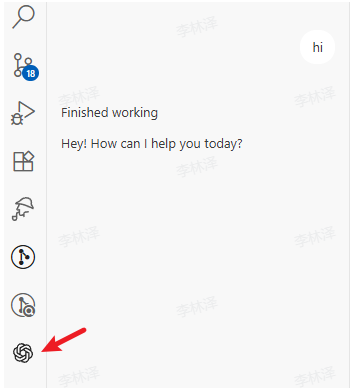
[Image]

Linux Tutorial#

System Requirements#

Major Linux distributions (Ubuntu 20.04+, Debian 10+, CentOS 7+, etc.)
Node.js 22+
npm 10+
Network connection

Installation Steps#

1. Install Node.js
Ubuntu/Debian
CentOS/RHEL/Fedora
Arch Linux
2. Install codex
Open Terminal and run:
3. Verify Installation
Open Terminal and run:

Configure API#

1. Obtain Auth Token
Visit the Crazyrouter website and perform the following:
Click Console → API Tokens page
Click Add Token
Token group: Select codex-channel-gpt (you must select this group, otherwise it won't work)
Token name: Any name you prefer
Quota recommendation: Set to Unlimited
Keep other options as default
[Image]
2. Configuration Files
Important: Replace sk-xxx below with your actual API key generated from Crazyrouter!
1.
Create directory and files:
2.
Edit the auth.json file:
Press i to enter insert mode, paste the following content (replace sk-xxx with your key), then press ESC, type :wq and press Enter to save and exit.
{"OPENAI_API_KEY": "sk-xxx"}
3.
Edit the config.toml file:
Press i to enter insert mode, paste the following content, then press ESC, type :wq and press Enter to save and exit.
model_provider = "api111"
model = "gpt-5-codex"
model_reasoning_effort = "high"
disable_response_storage = true
preferred_auth_method = "apikey"

[model_providers.api111]
name = "api111"
base_url = "https://api.crazyrouter.com/v1"
wire_api = "responses"

Launch codex#

Restart your terminal! Restart your terminal! Restart your terminal!
Then navigate to your project directory:
Run the following command to start:
image.png

VSCode codex Extension#

After completing the above configuration, search for and install codex in the VSCode Extension Marketplace.
image.png
Once installed, it will appear in the sidebar.

image.png#

FAQ#

If you encounter errors, troubleshoot with the following steps:
1.
Confirm the API Key was created correctly: Set quota to Unlimited, don't restrict models, and select codex-channel-gpt as the group.
For more codex configuration and usage details, please refer to the official codex tutorial.

Last verified/modified: 2026-09-28 (API base URL unified to https://api.crazyrouter.com, 3 occurrence(s); account/console stays https://crazyrouter.com)
Modified at 2026-09-28 12:50:39
Previous
Node.js Audio Transcription Demo
Next
N8N
Built with